Tech & Wi-Fi
Troubleshooting Wi-Fi Connection Onboard for Reliable Access
Discover step-by-step troubleshooting Wi-Fi connection onboard to ensure reliable internet access while traveling by cruise ship or ferry, for seamless work and leisure.
28 January 2026
Troubleshooting Wi-Fi Connection Onboard for Reliable Access
Losing a stable connection mid-work call can turn any Mediterranean cruise or ferry trip from relaxing to stressful in seconds. Reliable Wi-Fi is more than a convenience for remote workers—it is the backbone of staying connected to colleagues and clients while crossing between iconic ports from Italy to Greece. By focusing on solid device setup and network authentication, you can keep your workday seamless even in the middle of the sea without missing a beat.
Table of Contents
- Step 1: Check Device Wi-Fi Settings For Connectivity
- Step 2: Reconnect To The Onboard Portal For Access
- Step 3: Verify Wi-Fi Package Activation And Payment
- Step 4: Restart Devices To Refresh Network Links
- Step 5: Test Internet Stability For Remote Work Needs
Quick Summary
| Main Insight | Detailed Explanation |
|---|---|
| 1. Check Wi-Fi Settings | Ensure your device’s Wi-Fi settings are correctly configured for connectivity before traveling. |
| 2. Reconnect to the Portal | Forget the existing Wi-Fi network and re-enter credentials to establish a fresh connection. |
| 3. Verify Package Activation | Confirm that your chosen Wi-Fi package is activated and valid on the onboard portal. |
| 4. Restart Devices | Reboot your devices systematically to troubleshoot any connectivity issues effectively. |
| 5. Test Internet Stability | Run speed tests to assess the Wi-Fi performance and determine suitability for remote work tasks. |
Step 1: Check device Wi-Fi settings for connectivity
Accessing your device’s Wi-Fi settings is the essential first step to establish a reliable internet connection while traveling on a maritime journey. Your goal in this process is to quickly verify and configure your device’s wireless network capabilities to ensure seamless online access.
Start by navigating to your device’s network settings panel - this looks slightly different depending on whether you’re using a smartphone, laptop, or tablet. On most devices, you’ll find the Wi-Fi settings by tapping the wireless icon or selecting “Network” or “Connections” in your system preferences. Wireless network setup steps typically involve scanning for available networks and selecting the appropriate onboard Wi-Fi service.
While checking your settings, confirm that wireless connectivity is activated and that your device is searching for available networks. Pay special attention to your device’s connection status indicator, which will show signal strength and active network details. If you encounter difficulties, try toggling the Wi-Fi off and back on to refresh your connection settings.
Pro Tip: Always screenshot your connection settings before boarding to have a quick reference if troubleshooting becomes necessary during your maritime internet experience.
Step 2: Reconnect to the onboard portal for access
Reconnecting to the onboard Wi-Fi portal requires a systematic approach to ensure smooth internet access during your maritime journey. Your primary objective is to successfully navigate the authentication process and regain network connectivity.
Begin by forgetting the existing network connection on your device to create a fresh connection opportunity. This process involves going into your device’s network settings and selecting the option to remove the current Wi-Fi profile. After removing the previous connection, scan for available networks and select the specific onboard Wi-Fi service provided by the maritime platform.

When reconnecting, carefully enter the correct network credentials exactly as provided by the ship’s internet service. Pay close attention to case sensitivity and any special characters in the password. If prompted, accept any necessary network certificates or terms of service to complete the authentication process. Should you encounter persistent connection issues, contact the onboard technical support team for immediate assistance.
Pro Tip: Keep your device’s network settings screenshot handy as a quick reference in case you need to troubleshoot or recreate your connection during the voyage.
Step 3: Verify Wi-Fi package activation and payment
Verifying your Wi-Fi package activation is a critical step to ensure uninterrupted internet access during your maritime journey. Your primary goal is to confirm that your selected package is correctly processed and ready for use.
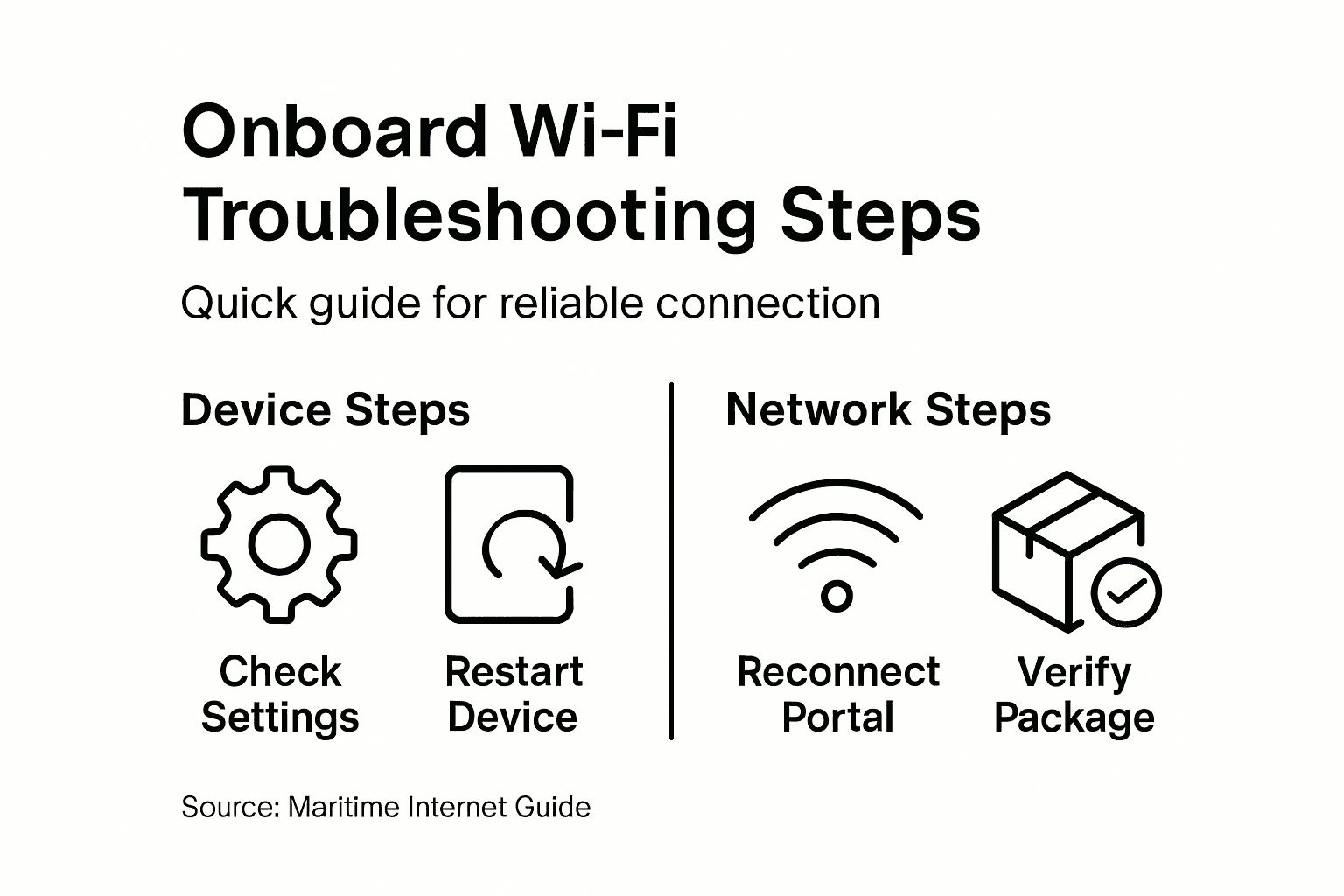
Begin by accessing the onboard portal and checking your account validation and authentication status. Review the payment confirmation screen carefully to ensure the package details match your selected service. Look for a clear indication of activation, which typically includes the package duration, data limits, and activation timestamp. Most maritime Wi-Fi services provide a real time dashboard where you can see your current package status, remaining data, and expiration date.
If you encounter any discrepancies or have difficulty confirming your package activation, contact the onboard customer support immediately. They can help verify your payment and resolve any technical issues preventing your internet access. Keep your purchase confirmation and transaction details readily available to expedite the troubleshooting process.
Pro Tip: Screenshot your package activation confirmation screen as a backup to quickly resolve any potential connectivity disputes during your voyage.
Step 4: Restart devices to refresh network links
Restarting your devices is a critical troubleshooting technique to resolve intermittent connectivity issues during your maritime internet experience. Your primary goal is to clear temporary network errors and re establish a stable connection.
Begin by restarting your Wi-Fi router and connected devices in a systematic order. Start with your primary device such as a laptop or smartphone by performing a complete shutdown rather than using sleep mode. Wait approximately 30 seconds before powering the device back on to allow complete memory and network interface reset. For onboard internet equipment, power down your device completely and wait at least one minute before reactivating to ensure a full network recalibration.
If the initial restart does not resolve your connectivity issues, try restarting each device individually and in sequence. Disconnect from the onboard Wi-Fi network before performing the restart, and then reconnect after each device powers back up. Pay attention to any error messages or persistent connection problems that might indicate a more complex technical issue requiring support from the maritime internet service team.
Pro Tip: Always keep your device charger nearby during network restarts to prevent unexpected power interruptions that could complicate the troubleshooting process.
Step 5: Test internet stability for remote work needs
Ensuring reliable internet connectivity is crucial for maintaining productivity during remote work on maritime journeys. Your goal is to comprehensively assess the onboard Wi-Fi performance to support professional tasks and communication.
Measure internet speed and stability by running multiple speed tests at different times throughout your voyage. Use reputable online speed testing platforms to check download and upload speeds, latency, and connection consistency. Pay special attention to bandwidth requirements for specific work tasks like video conferencing, file uploading, and collaborative document editing. Most maritime Wi-Fi services provide real time connection metrics that can help you understand potential limitations or performance variations during your journey.
If you detect significant performance fluctuations, document the results and contact the onboard technical support team. Consider testing your connection during different times of day to understand peak usage periods and potential network congestion. Alternative connection methods like mobile hotspots or backup data plans can provide additional reliability for critical work communications.
Pro Tip: Schedule your most bandwidth intensive work tasks during off peak hours when fewer passengers are likely to be using the onboard internet service.
Use this reference to understand typical internet speed requirements for major remote work tasks:
| Work Task | Minimum Download Speed | Minimum Upload Speed |
|---|---|---|
| Video conferencing (HD) | 3 Mbps | 1 Mbps |
| Large file uploads | 5 Mbps | 5 Mbps |
| Cloud document editing | 1 Mbps | 0.5 Mbps |
| Email and messaging | 0.5 Mbps | 0.5 Mbps |
Here’s a quick comparison of common maritime Wi-Fi troubleshooting steps and their typical outcomes:
| Step | Main Purpose | Expected Outcome |
|---|---|---|
| Check device Wi-Fi settings | Identify connectivity status | See active networks listed |
| Reconnect via onboard portal | Reset authentication and credentials | Regain access to internet |
| Verify package activation/payment | Confirm account and service status | Active package confirmed |
| Restart devices | Clear temporary network errors | Improved connection stability |
| Test internet speed and stability | Assess suitability for remote work | Data on bandwidth and latency |
Stay Connected Onboard With Seafy for Smooth Maritime Wi-Fi
Traveling on a ferry or cruise ship comes with unique challenges like maintaining a reliable internet connection as you move across the sea. If you have ever struggled with reconnecting to onboard portals or verifying your Wi-Fi package activation, you know how frustrating interruptions can be for work or staying in touch with loved ones. The article highlights key steps like checking your device settings, restarting your equipment, and testing internet stability — all vital actions for uninterrupted digital access.
At Seafy, we understand these pain points and offer a trusted digital platform that ensures stable and high-speed Wi-Fi connectivity across Mediterranean ferry and cruise routes. Partnering with leading maritime lines, Seafy integrates cutting-edge satellite technologies to keep you connected seamlessly throughout your journey. Whether you require internet for remote work or leisurely browsing, our easy-to-use portal simplifies purchasing and activating Wi-Fi packages onboard so you can avoid those common connectivity hurdles.
Don’t let unreliable internet disrupt your maritime experience. Visit Seafy now to explore how our dependable onboard Wi-Fi solutions can keep you connected effortlessly. Take control of your digital journey today and experience stress-free access at sea.
Frequently Asked Questions
How do I check my device’s Wi-Fi settings while onboard?
To check your device’s Wi-Fi settings, navigate to the network settings panel on your device. Tap the wireless icon or select the ‘Network’ or ‘Connections’ option to ensure Wi-Fi is active and scan for available onboard networks.
What should I do if I encounter connection issues after boarding?
If you experience connection issues, start by forgetting the existing network connection on your device. Then, select the onboard Wi-Fi service again and enter the correct credentials to reconnect.
How can I verify my Wi-Fi package activation onboard?
To verify your Wi-Fi package activation, log into the onboard portal and review the confirmation screen for your selected service. Ensure the package details match what you purchased, including duration and data limits.
What steps should I take if my Wi-Fi connection is unstable?
If your Wi-Fi connection is unstable, restart your device and the onboard equipment. This process can help clear temporary network errors and refresh connections—wait about 30 seconds after powering down before turning devices back on.
How can I test the internet speed and stability for remote work onboard?
To test internet speed and stability, run speed tests using reputable online platforms at various times during your journey. This assessment will help you understand the connection performance for your work tasks and identify peak usage periods.
What are the minimum internet speed requirements for common remote work tasks?
The minimum internet speed requirements vary by task: for video conferencing in HD, aim for at least 3 Mbps download and 1 Mbps upload. For file uploads, ensure speeds of at least 5 Mbps in both directions to maintain productivity.