Tech & Wi-Fi
How to Get Onboard Wi-Fi for Mediterranean Ferries
Learn how to get onboard wi-fi on Mediterranean ferries with simple steps—from preparation to activation. Stay connected at sea with this easy guide.
18 January 2026
How to Get Onboard Wi-Fi for Mediterranean Ferries
Missing that important email or losing touch with loved ones can turn a Mediterranean voyage from peaceful to frustrating in seconds. As leisure and business travelers rely on stable internet for work and communication, staying online at sea becomes vital. This guide breaks down the steps, from choosing the right Wi-Fi package for as little as 4.99 Euros to activating and troubleshooting your connection, making sure your experience aboard every Italian, Greek, or French ferry is convenient and dependable.
Table of Contents
- Step 1: Check Device Compatibility for Onboard Wi-Fi
- Step 2: Access the Ship’s Wi-Fi Portal Upon Boarding
- Step 3: Select and Purchase the Best Wi-Fi Package
- Step 4: Activate Your Wi-Fi Connection on Board
- Step 5: Verify Your Internet Connection and Speed
Quick Summary
| Key Point | Explanation |
|---|---|
| 1. Check Device Compatibility | Ensure your device meets the latest software and hardware requirements to connect to onboard Wi-Fi without issues. |
| 2. Access Wi-Fi Portal Promptly | Locate the ship’s Wi-Fi network and login portal upon boarding to connect quickly and smoothly. |
| 3. Choose the Right Wi-Fi Package | Assess your internet needs and select a Wi-Fi package that fits your online activities and budget best. |
| 4. Activate Your Wi-Fi Connection | Follow the steps in the Wi-Fi portal to activate your chosen package and start using the internet. |
| 5. Verify Connection Quality | Perform a speed test after activation to ensure your connection is working effectively for your needs. |
Step 1: Check Device Compatibility for Onboard Wi-Fi
Before connecting to onboard Wi-Fi, verifying your device’s compatibility is crucial. Modern smartphones, tablets, laptops, and other wireless-enabled devices can typically access maritime internet services, but some preparation will help ensure a smooth connection experience.
Start by checking your device’s basic requirements. Most onboard Wi-Fi systems work with devices running recent versions of Windows, MacOS, iOS, and Android operating systems. Ensure your device has an updated wireless network adapter and is running the latest software version. Cruise connectivity guidance recommends keeping your device software current to maximize compatibility and performance.
Take a moment to review your device settings before boarding. Disable any power-saving modes that might interrupt network connections, and verify your device can automatically connect to available wireless networks. Some maritime Wi-Fi systems require manual network selection, so familiarize yourself with your device’s wireless connection interface. Consider disabling any VPN services temporarily, as they can interfere with satellite-based internet connections.
Pro tip: Photograph your device settings or take screenshots before traveling, so you can quickly restore optimal configuration if needed.
Step 2: Access the Ship’s Wi-Fi Portal Upon Boarding
Once you board the Mediterranean ferry, connecting to the onboard Wi-Fi is your gateway to staying connected during your journey. The process is straightforward but requires a few specific steps to successfully access the WiFi portal for seamless connectivity.
Locate the ship’s Wi-Fi network by scanning available wireless networks on your device. The network name typically begins with the ferry line’s name or a standard prefix like “Ship Wi-Fi” or “Maritime Network”. Open your device’s wireless settings and select the appropriate network. After connecting, your web browser will automatically redirect you to the ship’s Wi-Fi login portal. If automatic redirection fails, manually open a web browser and type in the default portal address usually displayed on informational screens around the ship.
In the Wi-Fi portal, you will need to select your preferred internet package and complete the purchase process. Have your payment method ready and be prepared to enter basic personal information. Some ferry lines offer prepaid packages that can be purchased before boarding, which can simplify the onboarding process.
Pro tip: Keep your device charged and bring a portable battery pack in case charging stations are limited on the ship.
Step 3: Select and Purchase the Best Wi-Fi Package
Choosing the right internet package for your Mediterranean ferry journey requires understanding your connectivity needs and budget. Internet packages for Mediterranean travelers offer flexible options designed to meet various communication and entertainment requirements.
Start by assessing your planned online activities. If you need basic messaging and email checking, a data-limited plan might suffice. For travelers wanting to stream videos or participate in video calls, consider a more comprehensive package with higher data allowances. Most ferry Wi-Fi portals provide clear pricing tiers ranging from basic browsing packages starting around 4.99 Euros to more extensive plans supporting multiple device connections and higher bandwidth.
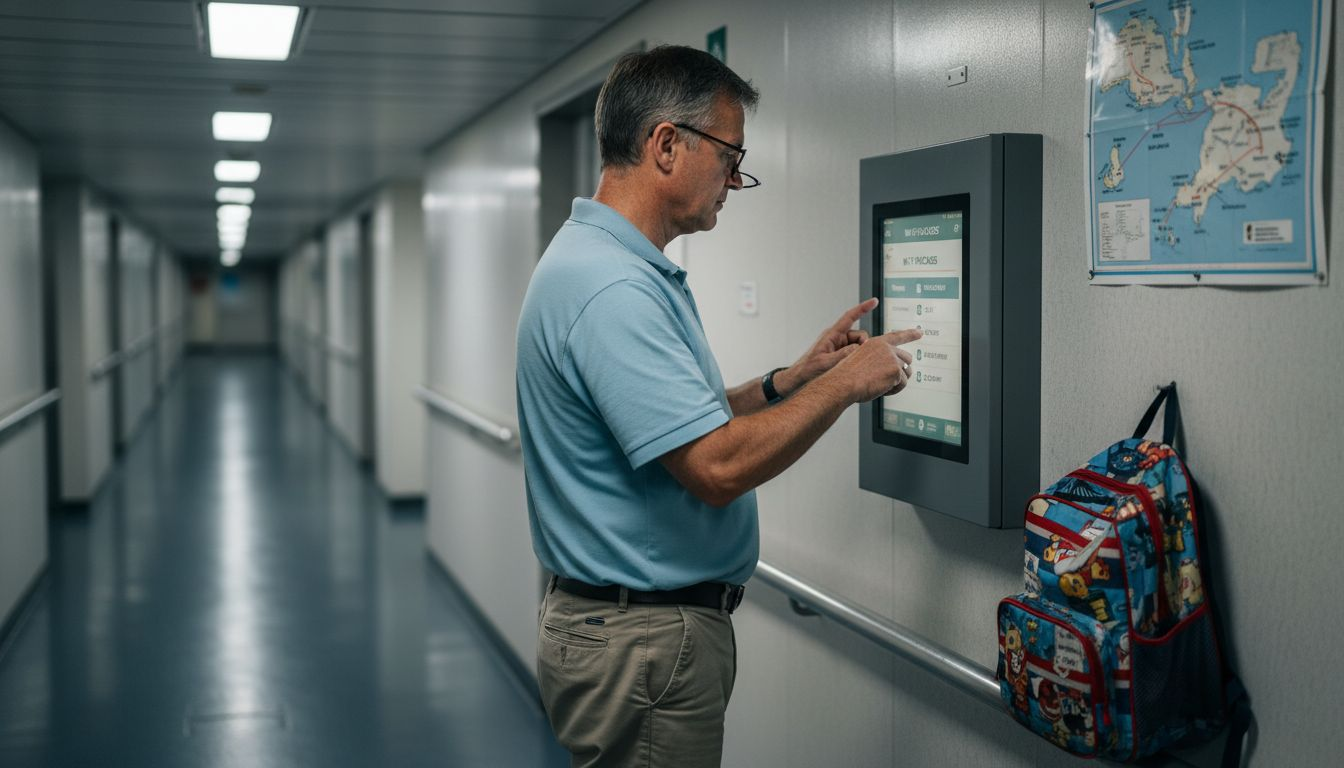
Review the package details carefully before purchasing. Check the validity period, data limits, and supported activities. Some packages offer time-based access while others provide data volume options. Consider purchasing your package in advance through the online portal to potentially save money and avoid onboard transaction complications.
Here’s a summary of how different Mediterranean ferry Wi-Fi packages typically compare:
| Package Type | Typical Use Case | Price Range | Data or Time Limit |
|---|---|---|---|
| Basic | Messaging & email | €4.99–€7.99 | 100–300 MB or 1–2 hrs |
| Standard | Web browsing | €8.99–€15.99 | 500 MB–1 GB or 3–6 hrs |
| Premium | Streaming & work | €19.99–€34.99 | 2–5 GB or 12–24 hrs |
Pro tip: Screenshot your purchased Wi-Fi package details and confirmation for quick reference during your journey.
Step 4: Activate Your Wi-Fi Connection on Board
With your Wi-Fi package selected, the next crucial step is activating your internet connection seamlessly. Onboard Wi-Fi activation process involves a few straightforward steps that will get you online quickly and efficiently.
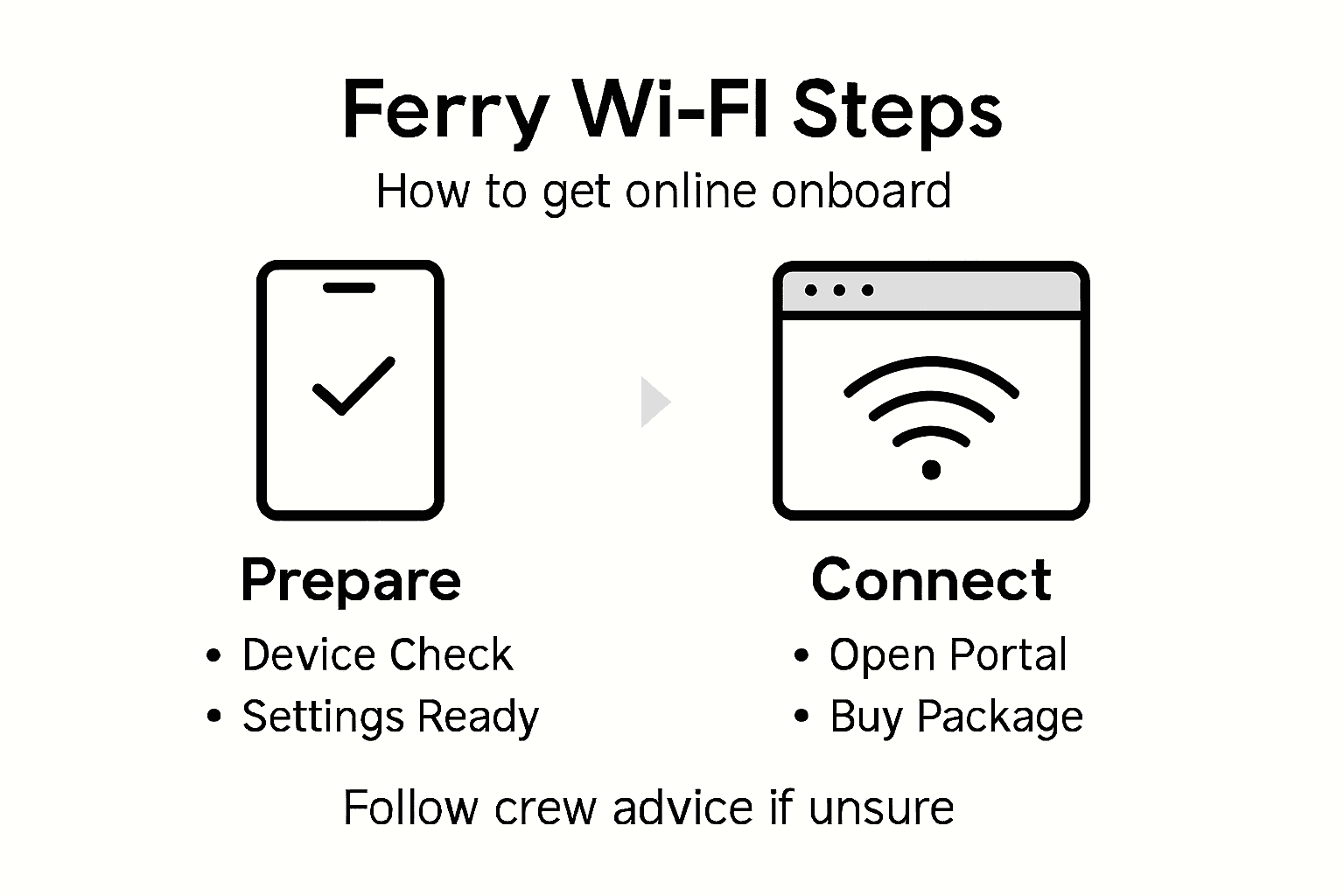
Once you are in the ship’s Wi-Fi portal, locate the activation section for your chosen package. Enter the package code or select your previously purchased plan. The portal will typically require you to confirm your purchase and validate your selected package. Some systems might ask you to create a quick user profile or enter basic contact information to complete the activation process. Be prepared with your payment method or package confirmation details to ensure smooth connectivity.
After completing the activation, the system will provide you with login credentials or automatically connect your device. Verify your connection by opening a web browser or running a speed test to confirm the internet is working correctly. Most maritime Wi-Fi systems offer instant activation, allowing you to start browsing, messaging, or working immediately after purchase.
Pro tip: Keep your activation confirmation and login details in an easily accessible digital or physical location during your journey.
Step 5: Verify Your Internet Connection and Speed
After activating your onboard Wi-Fi package, confirming your internet connection and understanding its performance is crucial for a smooth online experience. Satellite Wi-Fi performance insights reveal that maritime internet connections can be unpredictable and require careful verification.
Open a web browser and navigate to a speed test website to assess your connection quality. Run multiple tests at different times to get an accurate representation of the internet performance. Pay attention to download and upload speeds, which may fluctuate due to satellite transmission and the number of users connected simultaneously. Be prepared for speeds that are slower compared to terrestrial broadband. Check your ability to send emails, browse websites, and use messaging applications to ensure basic connectivity meets your needs.
If you encounter persistent connection issues, contact the ship’s internet support team or visit the Wi-Fi help desk. Some maritime networks have specific restrictions on streaming and bandwidth-heavy activities, so adjust your expectations accordingly. Consider downloading important files or media content before your journey to mitigate potential connectivity limitations.
Refer to this quick guide for troubleshooting common onboard Wi-Fi issues:
| Issue | Possible Cause | Quick Solution |
|---|---|---|
| No portal redirection | Network not detected | Enter portal address manually |
| Slow connection speeds | High user volume | Retry at off-peak hours |
| Cannot stream content | Service restrictions | Switch to basic browsing or download |
| Frequent disconnections | Power-saving settings | Disable energy-saving on device |
Pro tip: Save screenshots of your speed test results in case you need to discuss connection quality with onboard support staff.
Seamless Onboard Wi-Fi for Your Mediterranean Ferry Journey
Connecting to onboard Wi-Fi can often feel frustrating with slow speeds, complicated activation steps, and uncertain device compatibility. This article highlights common challenges such as selecting the right internet package, activating your connection smoothly, and verifying stable performance while at sea. If you want to avoid worrying about connection drops or confusing portals, Seafy offers a reliable and easy-to-use solution to keep you connected on Mediterranean ferries and beyond.
Explore how Seafy partners with top ferry lines to deliver high-speed maritime internet through a user-friendly portal. Whether you need internet for streaming, working remotely, or staying in touch with loved ones, Seafy provides flexible packages tailored for your needs. Take control of your onboard experience now by visiting Seafy. Discover helpful tips and plan your connection in advance at Seafy Blog. Start your journey confident in seamless connectivity with Seafy Wi-Fi Portal.
Frequently Asked Questions
How can I check if my device is compatible with the onboard Wi-Fi for Mediterranean ferries?
To ensure your device is compatible with the onboard Wi-Fi, verify that it is running a recent version of Windows, MacOS, iOS, or Android. Also, update your wireless network adapter and check your device settings before boarding to disable any power-saving modes that might disrupt connections.
What steps do I need to follow to access the ship’s Wi-Fi upon boarding?
To access the ship’s Wi-Fi, locate the ferry’s network name in your device’s Wi-Fi settings and connect to it. After connecting, your web browser should redirect you to the ship’s Wi-Fi portal, where you can select and purchase an internet package.
How do I choose the right Wi-Fi package for my Mediterranean ferry journey?
Start by evaluating your online activities during the ferry ride. If you plan to simply check emails, a basic package may suffice, while streaming or video calls will require a more robust plan; review the package details on the portal for data limits and pricing before making a purchase.
What should I do if I experience connectivity issues after activating my Wi-Fi connection?
If you experience connectivity issues, first verify your internet connection by running a speed test or checking basic online functions. If problems persist, contact the ship’s internet support team or visit the Wi-Fi help desk for assistance.
How can I confirm that my onboard Wi-Fi connection is working correctly?
To confirm your onboard Wi-Fi connection, open a web browser and navigate to a speed test website. Running multiple tests at different times can help assess the quality of your connection and ensure it meets your internet usage needs.
What troubleshooting steps should I take for common onboard Wi-Fi issues?
To troubleshoot common issues, check for manual portal entry if automatic redirection fails, try accessing the internet during off-peak hours for better speeds, and ensure that any power-saving settings on your device are disabled to maintain a stable connection.