Tech & Wi-Fi
Wi-Fi Troubleshooting Steps for Ferries: Reliable Connectivity
Follow these wi-fi troubleshooting steps for ferries to solve connection issues onboard and ensure seamless, high-speed internet access for work and entertainment.
03 February 2026
Wi-Fi Troubleshooting Steps for Ferries: Reliable Connectivity
Finding steady Wi-Fi on a Mediterranean ferry can be the difference between a productive workday and endless buffering. For travelers relying on their devices, a dropped signal or confusing activation step is more than a minor inconvenience. This guide breaks down easy ways to check settings, restart your equipment, and reconnect to the Seafy network, so you get reliable internet access whether crossing from Italy to Greece or sailing to Spain.
Table of Contents
- Step 1: Check Device Wi-Fi Settings
- Step 2: Restart Device and Router Portal
- Step 3: Reconnect to Seafy Onboard Network
- Step 4: Resolve Package Activation Issues
- Step 5: Test Internet Access and Signal Strength
Quick Summary
| Key Point | Explanation |
|---|---|
| 1. Verify Wi-Fi Settings | Check that Airplane Mode is off and the correct network is selected to ensure a stable connection before traveling. |
| 2. Restart Device for Connectivity | Restarting your device and router can resolve most connectivity issues, enhancing your internet access during the journey. |
| 3. Reconnect to Seafy Network | Make sure to select the correct Seafy network and enter your credentials accurately to maintain uninterrupted service. |
| 4. Troubleshoot Activation Issues | Double-check your activation code and connection status when experiencing difficulties to facilitate a smoother activation process. |
| 5. Test Internet Performance | Conduct speed tests and check signal strength to identify and address potential issues, ensuring reliable connectivity on the ferry. |
Step 1: Check Device Wi-Fi Settings
In this step, you’ll verify your device’s Wi-Fi configuration to ensure a stable connection during your ferry journey. Checking your device settings is crucial for maintaining reliable internet access while traveling.
First, open your device’s network settings and look for the Wi-Fi connection icon. On most devices, this means navigating to Network & Internet settings. Check Wi-Fi connection details to confirm your current network status.
Here are some key steps to verify your Wi-Fi settings:
- Confirm Airplane Mode is turned off
- Verify the correct network is selected
- Check signal strength indicator
- Review connection properties
Pro tip: Always check your Wi-Fi settings before boarding to avoid connectivity surprises during your maritime journey.
Next, inspect your network adapter properties. You can view detailed connection information such as:
- Current IP address
- Network adapter status
- Connection speed
- MAC address
Pro tip: Take a screenshot of your network settings in case you need technical support during your trip.
Step 2: Restart Device and Router Portal
Restarting your device and router portal can quickly resolve most Wi-Fi connectivity issues during your maritime journey. This simple troubleshooting technique helps clear temporary network glitches and reset your connection.
Power cycling your router involves a systematic approach to resetting network equipment. Follow these detailed steps to restart your device:
- Unplug your device’s power adapter
- Wait 30-60 seconds completely
- Reconnect the power adapter
- Allow device to fully reboot
Restarting network equipment can resolve up to 70% of common connectivity problems.
Here are additional considerations when restarting your device:
- Close all active applications
- Ensure you have saved any ongoing work
- Check battery levels before restarting
- Verify internet connection after restart
When restarting, remember that router restart procedures might differ slightly between devices. Some modern routers offer mobile app restart options, which can be more convenient.
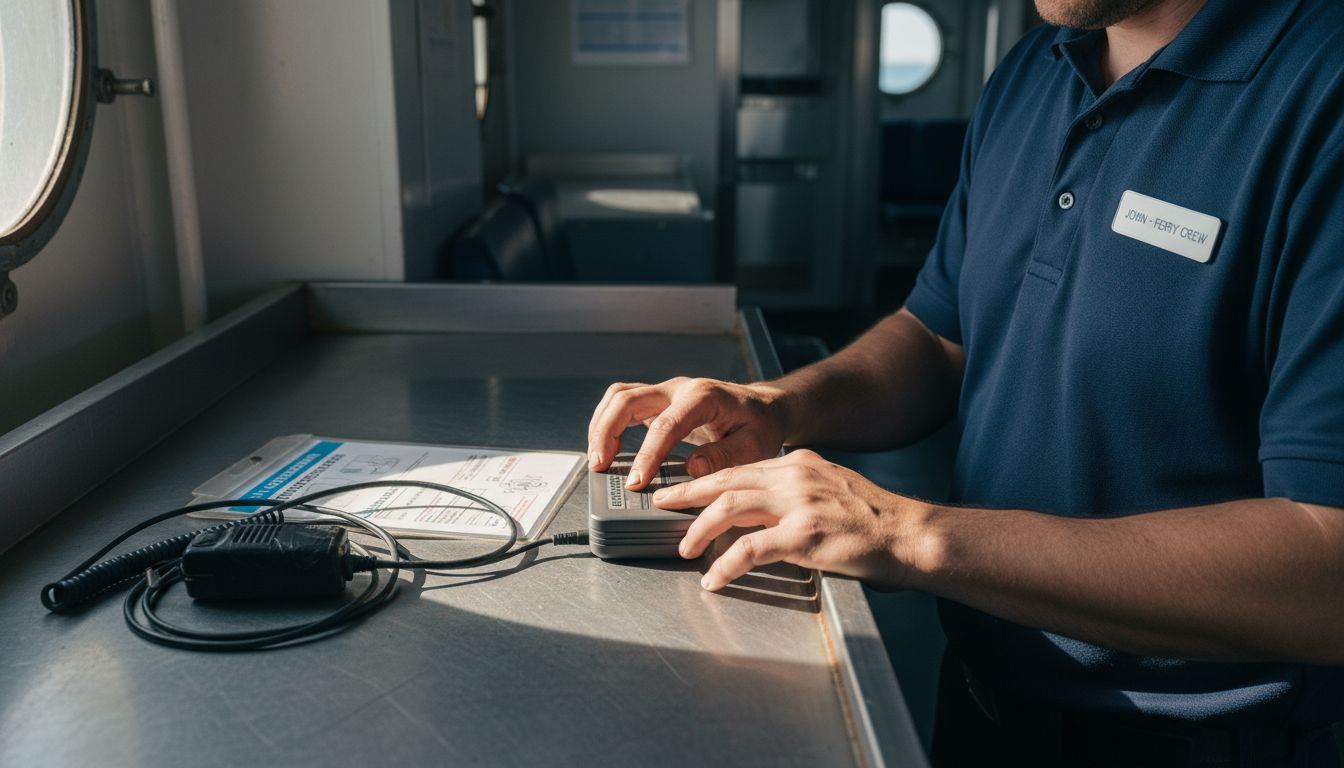
Pro tip: Keep your device charger and a backup power bank handy during maritime travels to ensure uninterrupted connectivity.
Step 3: Reconnect to Seafy Onboard Network
Reconnecting to the Seafy onboard network is a straightforward process that ensures you stay connected throughout your maritime journey. Understanding the correct steps can help you quickly restore your internet access and minimize interruptions.
To reconnect, first open your device’s Wi-Fi settings and locate the Seafy onboard network by its distinctive name. Look for the network labeled Seafy Wi-Fi or a similar branded identifier specific to your ferry line.
Here are the key steps to successfully reconnect:
- Select the Seafy network from available connections
- Enter your purchased access credentials
- Wait for network authentication
- Confirm successful connection status
A stable connection depends on selecting the correct network and having valid access credentials.
If you encounter connection difficulties, consider these troubleshooting steps:
- Double-check network name spelling
- Verify your login information
- Ensure you have an active Wi-Fi package
- Move closer to the router if signal seems weak
Some modern devices offer automatic reconnection features, but maritime networks can have unique connection requirements. Always be prepared to manually reconnect if needed.
Pro tip: Screenshot your login credentials before boarding to avoid connection stress during your journey.
Step 4: Resolve Package Activation Issues
Activating your Seafy Wi-Fi package can sometimes present challenges, but understanding the correct process will help you navigate potential roadblocks during your maritime journey. Knowing how to troubleshoot activation problems ensures you stay connected throughout your trip.
Wi-Fi package activation requires careful attention to detail and following specific steps. The process involves accessing the Seafy portal and entering your unique access code accurately.
Here are the key troubleshooting steps for package activation:
- Double-check your Wi-Fi code
- Ensure you’re connected to the Seafy network
- Verify internet connectivity
- Restart the activation process
Accurate code entry is the most critical factor in successful Wi-Fi package activation.
Common activation issues include:
- Incorrect code entry
- Network connectivity problems
- Expired or invalid package codes
- Temporary system limitations
If you continue experiencing difficulties, most ferry lines offer onboard support to help resolve activation challenges. Staff can assist with manual code verification or provide alternative connection methods.
Pro tip: Take a clear photo of your activation code before boarding to prevent potential transcription errors.
Step 5: Test Internet Access and Signal Strength
Testing your internet access and signal strength is crucial for ensuring a reliable connection during your maritime journey. By understanding how to evaluate your Wi-Fi performance, you can quickly identify and address potential connectivity issues.
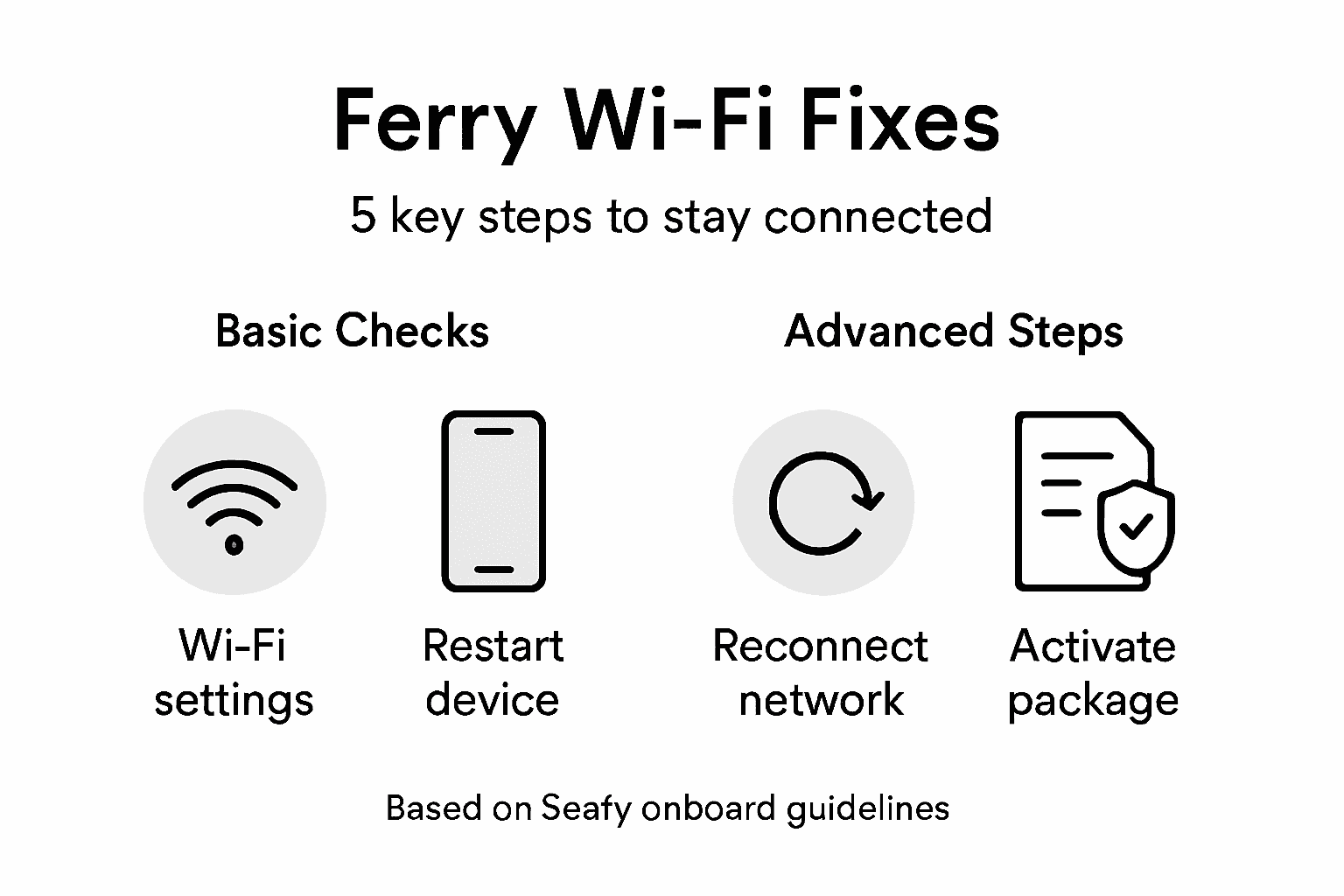
Wi-Fi signal analysis helps you diagnose the quality of your onboard internet connection. Understanding signal metrics can help you find the best location and optimize your browsing experience.
Here are key steps to test your internet access:
- Open a speed test website
- Check download and upload speeds
- Measure signal strength
- Test connection stability
Signal strength below -70 dBm typically indicates a weak connection that may impact performance.
Important signal strength indicators include:
- Number of Wi-Fi bars displayed
- Connection speed performance
- Latency and ping times
- Packet loss percentage
If you experience consistently poor connectivity, consider changing your location on the ferry or contacting onboard support for assistance. Different areas of the ship might offer varying signal strengths.
For quick reference, here are essential Wi-Fi signal metrics and what they indicate:
| Indicator | Good Value | Poor Value | What It Means |
|---|---|---|---|
| Signal strength | Above -60 dBm | Below -70 dBm | Strong or weak connection |
| Download speed | 5 Mbps or higher | Below 1 Mbps | Fast or slow experience |
| Ping/latency | Under 60 ms | Over 150 ms | Responsive or delayed |
Here is a comparison of common Wi-Fi connectivity issues and recommended actions:
| Issue Type | Likely Cause | Recommended Action |
|---|---|---|
| No internet access | Incorrect network or weak signal | Reconnect or move closer to router |
| Repeated disconnections | Network congestion or device limitation | Restart device and router |
| Package activation failure | Invalid or mistyped activation code | Double-check code and re-enter |
| Slow browsing speed | Weak signal strength or ferry position | Test signal, relocate if needed |
Pro tip: Move closer to the router or try repositioning your device to improve signal reception.
Stay Connected Seamlessly Onboard with Seafy
Traveling by ferry should never mean losing touch with the world. The article highlights common challenges like Wi-Fi package activation issues, weak signal strength, and connectivity interruptions that disrupt your maritime experience. Don’t let confusing codes, unstable connections, or poor signals keep you offline during important moments or remote work deadlines. With Seafy, a digital platform dedicated to reliable high-speed Wi-Fi connectivity for ferries and cruise ships, you get hassle-free access to the internet across Mediterranean and other routes. Our easy-to-use portal simplifies purchasing and activating packages so you can avoid activation errors and enjoy stable connections powered by cutting-edge satellite technology.
Experience worry-free internet wherever you sail by choosing Seafy’s onboard Wi-Fi service. Whether you are streaming entertainment, making important calls, or staying productive, Seafy’s partnerships with leading ferry lines like Corsica Ferries and Grimaldi Lines ensure you stay connected. Don’t wait until you face connection troubles onboard. Visit Seafy.com now and secure your seamless maritime internet experience before your next journey.
Frequently Asked Questions
How can I check my device’s Wi-Fi settings before my ferry journey?
To check your device’s Wi-Fi settings, open the Network & Internet settings and confirm that Airplane Mode is turned off, the correct network is selected, and the signal strength indicator is strong. Verify your connection properties to ensure everything is set up correctly for reliable connectivity.
What should I do if I encounter Wi-Fi connectivity issues on the ferry?
If you have Wi-Fi connectivity issues, start by restarting your device and the router portal to clear any temporary glitches. Unplug the power adapter of your device, wait 30-60 seconds, and then reconnect it to improve your connection stability.
How do I reconnect to the Seafy onboard network during my journey?
To reconnect to the Seafy onboard network, go to your device’s Wi-Fi settings and select the Seafy network. Enter your purchased access credentials, wait for network authentication, and confirm that you have a successful connection status.
What should I do if my Seafy Wi-Fi package activation fails?
If your Wi-Fi package activation fails, double-check the accuracy of your Wi-Fi code and ensure you are connected to the Seafy network. Restart the activation process after confirming your connectivity to resolve most common activation issues.
How can I test my internet access and signal strength on the ferry?
To test your internet access and signal strength, visit a speed test website and check your download and upload speeds. Measure the signal strength and connection stability; if the signal is below -70 dBm, consider moving closer to the router for a better experience.
What actions can I take to improve my Wi-Fi signal on the ferry?
To improve your Wi-Fi signal, try relocating to an area closer to the router, as different locations on the ferry may have varying signal strengths. Additionally, reposition your device to enhance reception, which can significantly improve connectivity.