Tech & Wi-Fi
How to troubleshoot ship Wi-Fi: 6 steps to stay connected
Struggling with ship Wi-Fi on your Mediterranean cruise or ferry? Follow these 6 proven troubleshooting steps to restore reliable connectivity fast.
20 April 2026
How to troubleshoot ship Wi-Fi: 6 steps to stay connected
TL;DR:
- Most ship Wi-Fi issues are user-side and fixable with methodical troubleshooting.
- Confirm connection to the correct SSID, complete portal login, and verify your plan supports your usage.
- Reboot devices, test in different locations, disable VPNs, and check plan tier for effective fixes.
Your video call drops mid-sentence during a client meeting. Or your favorite show freezes just as the plot thickens. Whether you’re a remote worker crossing the Mediterranean or a traveler trying to unwind onboard, a failing Wi-Fi connection is genuinely frustrating. The good news? Most ship Wi-Fi problems have fixable causes. This guide walks you through clear, repeatable steps to diagnose and resolve connectivity issues on cruise ships and ferries, so you can get back online fast.
Table of Contents
- Understand the basics of ship Wi-Fi
- Essential tools and prerequisites for troubleshooting
- Step-by-step troubleshooting for ship Wi-Fi issues
- Common pitfalls and advanced fixes
- Our take: What most passengers miss about ship Wi-Fi troubleshooting
- Stay connected with Seafy for smooth sailing
- Frequently asked questions
Key Takeaways
| Point | Details |
|---|---|
| Portal login is crucial | Always connect to the ship’s network and sign in through the browser portal for Wi-Fi access. |
| Match plan to your needs | Choose the correct Wi-Fi package tier if you plan to stream or attend video calls. |
| Disable VPN for testing | Turn off VPNs and background apps when troubleshooting ship Wi-Fi to avoid unnecessary blocks. |
| Reboot and relocate | Try rebooting your device and moving to a new area on the ship when problems persist. |
Understand the basics of ship Wi-Fi
Before you dive into troubleshooting, it’s important to know how ship Wi-Fi works. Unlike home broadband, onboard internet runs through satellite systems positioned thousands of miles above the ocean. Signal travels from the ship to the satellite and back, which means even a well-functioning connection has inherent latency.
There are three things you need in place before anything else works:
- Correct SSID: Your device must connect to the exact ship network name (SSID), not a similar-sounding one.
- Captive-portal login: Most ships use a browser-based login page where you authenticate your plan before browsing.
- A valid, active plan: Without a purchased and activated package, you simply won’t get access.
The most common issues passengers report include slow speeds, sudden drops, and being stuck on the portal login screen. Understanding these layers helps you pinpoint where your problem actually lives.
Here’s a quick reference for typical issues and their likely causes:
| Symptom | Most likely cause |
|---|---|
| Can’t load any pages | Portal login not completed |
| Slow but connected | Congested satellite or wrong tier |
| Frequent disconnections | Weak signal in your location |
| Login page won’t load | Wrong SSID selected |
As a starting point, confirm you joined the correct ship network and completed the captive-portal sign-in in a browser before doing anything else.
Essential tools and prerequisites for troubleshooting
Once you understand the basics, gather everything you need for effective troubleshooting. Going in without this information is like trying to fix a car without knowing what model it is.
Here’s what to have on hand:
- Your device (fully charged or plugged in)
- Your Wi-Fi package login credentials or activation code
- Your plan tier details (what you purchased)
- A secondary device, if available, to test the connection independently
Plan tier is especially important. Not all onboard packages are created equal. Verifying you’re on the right plan tier before troubleshooting saves a lot of wasted effort, particularly when you need video calls or cloud work and your plan only supports basic browsing.
| Plan tier | Best for | Typically supports |
|---|---|---|
| Browse | Email, messaging, light web use | Text, small attachments |
| Browse & Stream | Remote work, video calls, entertainment | Video calls, streaming, cloud apps |
For reliable ferry internet access, picking the right tier before boarding is one of the single most effective things you can do.
Pro Tip: Before your trip, screenshot your plan confirmation and login credentials. Ship portal pages sometimes behave unexpectedly, and having that info offline saves real stress.
Step-by-step troubleshooting for ship Wi-Fi issues
With your tools and plan details ready, work through this streamlined process:
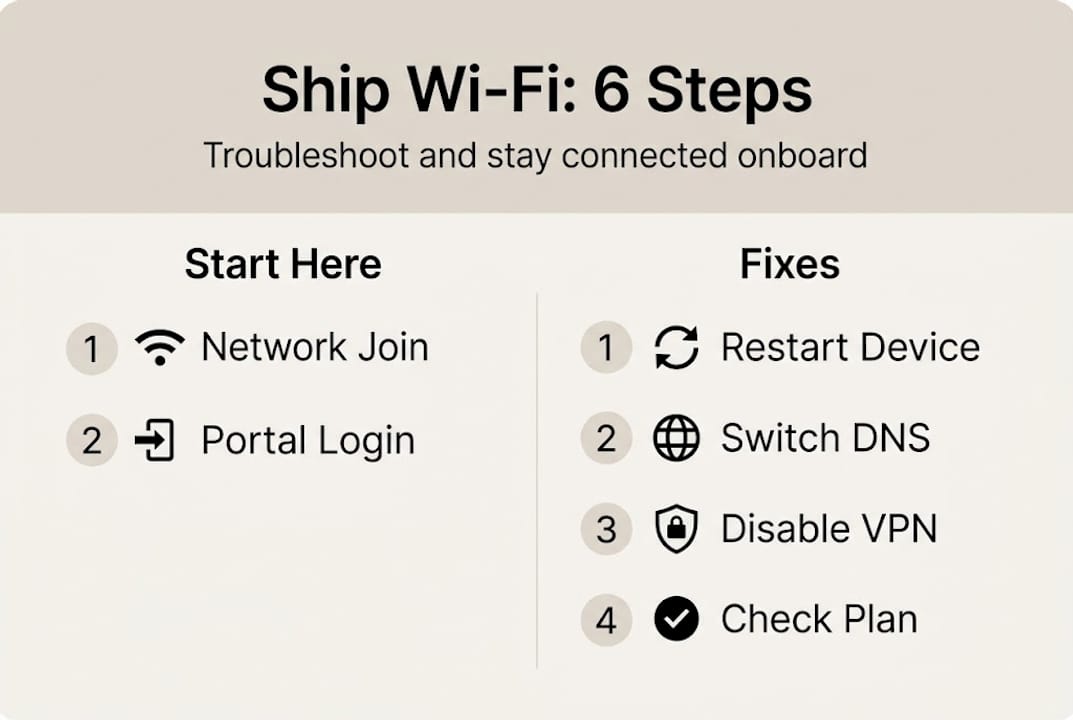
- Connect to the correct SSID. Open your device’s Wi-Fi settings and select the ship’s official network name. Avoid guessing based on similar names.
- Complete the portal login. Open a browser (not an app) and navigate to any HTTP website. The portal page should appear automatically. Sign in with your credentials.
- Reboot your device. A simple restart clears stale network caches and resolves many connection issues faster than any other single fix.
- Test in a different location onboard. Signal strength varies significantly by deck and proximity to the ship’s antenna. Moving to an open deck or a higher level often improves connectivity noticeably.
- Disable your VPN and background sync apps. VPNs commonly cause slowdowns on ship Wi-Fi and can prevent portal authentication from completing. Turn off your VPN before connecting, then re-enable it only after you’re logged in.
- Confirm your plan supports your task. If video calls are freezing but browsing works, the issue may not be technical at all. Review this step-by-step troubleshooting resource for additional context.
Following this sequence covers the most common causes for ferry Wi-Fi troubleshooting tips and cruise ship environments alike.
Pro Tip: Always use a browser, not an app, to trigger the portal login page. Apps sometimes bypass the portal entirely, leaving you stuck without access even though your device shows “connected.”
Common pitfalls and advanced fixes
If basic fixes haven’t worked, avoid these common oversights and try advanced tips.
Many passengers make the same mistakes that slow down their troubleshooting:
- Skipping the portal login entirely. This is the single most common reason people think the Wi-Fi is broken when it isn’t.
- Ignoring plan tier limitations. Trying to video call on a basic browse plan will always fail, regardless of signal strength.
- Not testing in a new location. Staying in a cabin below the waterline while blaming the network is a frequent oversight.
- Leaving background apps running. Cloud backups, streaming services, and app updates consume significant bandwidth and degrade performance for everything else.
For advanced fixes, consider these steps:
Update your device’s operating system and network drivers before boarding. Outdated firmware can create compatibility issues with ship portal systems that are completely unrelated to the ship’s actual network quality.
You should also manually configure your device’s DNS settings. Onboard DNS servers are sometimes overloaded. Switching to a public DNS (like 1.1.1.1 or 8.8.8.8) can restore access when nothing else works. Understanding what slows ship Wi-Fi at a technical level helps you target the right fix faster.

Finally, know what types of ship Wi-Fi your route uses. Satellite technology varies, and Starlink-enabled ferries generally deliver faster and more stable connections than older VSAT systems. If your ship uses Starlink, latency issues are less common, but congestion during peak hours still happens.
As confirmed by cruise network research, video calling and streaming require a higher-tier plan. No amount of troubleshooting will fix a plan mismatch.
Our take: What most passengers miss about ship Wi-Fi troubleshooting
Here’s something most guides won’t say directly: the majority of ship Wi-Fi failures are not network failures at all. They’re user-side problems that take under two minutes to fix, but only if you approach them methodically.
Rushing through the steps without completing each one properly is what sabotages results. Rebooting before logging into the portal, for example, resets nothing useful. The order matters.
Knowing why seamless Wi-Fi matters at sea changes how you approach this. Your plan tier and your VPN status are almost always the culprits when the basics check out. Treat them as non-negotiable diagnostics, not optional steps. That mindset shift alone cuts troubleshooting time dramatically.
Stay connected with Seafy for smooth sailing
Now that you’re equipped to troubleshoot ship Wi-Fi, consider making your next voyage simpler with a reliable onboard provider.

Seafy offers onboard Wi-Fi solutions designed specifically for Mediterranean ferry and cruise passengers, whether you’re managing deadlines at sea or streaming after a long day of sightseeing. With partnerships across Corsica Ferries, Grimaldi Lines, and GNV, plus Starlink integration for stable satellite performance, Seafy makes it easy to choose the right plan before you board. No surprises, no frustrating portal confusion. Just reliable connectivity when you need it. 🌐
Frequently asked questions
What should I do first if ship Wi-Fi isn’t working?
Connect to the ship’s Wi-Fi SSID, open a browser to trigger the portal login page, and confirm your plan is active before trying anything else.
Why does my VPN cause Wi-Fi connection issues on ships?
VPNs interfere with the captive-portal authentication process that ship networks require. Disabling your VPN before connecting is one of the most effective first steps you can take.
How can I check if my plan supports video calls or streaming?
Review your package confirmation. Video calling and streaming are only available on higher-tier plans, so a basic browse plan will not support them regardless of signal strength.
If none of these steps work, who can help onboard?
Contact the ship’s technology help desk or guest services desk directly. They can reset your session, check for outages, or verify your plan activation status on their end.