Tech & Wi-Fi
Internet troubleshooting at sea: step-by-step WiFi guide
Fix shipboard internet fast with this step-by-step troubleshooting guide for ferry and cruise passengers and crew. Covers workflows, benchmarks, and expert tips.
21 April 2026
Internet troubleshooting at sea: step-by-step WiFi guide
TL;DR:
- Reliable shipboard WiFi troubleshooting relies on systematic steps like verifying the network and moving locations.
- Common issues at sea include congestion, interference, and rogue networks, requiring patience and routine diagnostics.
- Speed tests, location changes, and device restarts are key to confirming and improving internet connection quality.
You’re halfway across the Mediterranean, your ferry is cutting through the waves, and your internet connection just died. Whether you’re trying to send a work email or stream music, a dropped shipboard connection is genuinely frustrating. The good news is that most issues follow predictable patterns and respond well to structured troubleshooting. This guide walks you through every step, from basic preparation to advanced benchmarking, so both passengers and crew can restore reliable connectivity faster and with less guesswork. 🌐
Table of Contents
- What you need before troubleshooting
- Standard internet troubleshooting workflow for passengers
- Troubleshooting steps for crew: maintaining reliable shipboard internet
- Common issues, root causes, and expert troubleshooting tips
- Verifying success: how to test and benchmark your connection
- Our perspective: what most troubleshooting guides miss about internet at sea
- Get reliable shipboard WiFi with Seafy’s expert solutions
- Frequently asked questions
Key Takeaways
| Point | Details |
|---|---|
| Be methodical | A systematic workflow resolves most shipboard internet issues faster than random tinkering. |
| Understand common causes | Network congestion, weather, and GNSS jamming are leading culprits behind unreliable connections at sea. |
| Different roles, different steps | Passengers focus on device-based fixes, while crew handle system-level resets and diagnostics for shipwide connectivity. |
| Benchmark success | Test your connection after troubleshooting to ensure performance matches plan expectations. |
What you need before troubleshooting
Before starting any troubleshooting, make sure you have everything necessary for a fast, safe process.
Having the right information ready saves you significant time. Gather these before you begin:
- WiFi network name (SSID): Confirm this with crew or posted signage onboard
- Login portal URL: Usually displayed after you connect, or found in your welcome packet
- Access credentials: Your purchase confirmation email or the code from a voucher
- Updated device: Make sure your OS, browser, and any VPN app are current
- Physical location: Open decks and upper levels typically offer the strongest signal
As connection guides for ferries confirm, standard passenger troubleshooting steps across ferries and cruises require connection details and device preparation before anything else.
Pro Tip: Always verify the exact network name with a crew member. Fake “rogue” WiFi hotspots can mimic official ship networks and put your data at risk.
Use your onboard internet checklist to make sure nothing is missed before you connect.
| Preparation item | Passengers | Crew |
|—|—|—|
| Network name confirmed | Required | Required |
| Login credentials ready | Required | System login |
| Device OS updated | Recommended | Required |
| VPN app installed | Premium plans | Admin tools |
| Location scouted | Upper decks | Equipment room |
Standard internet troubleshooting workflow for passengers
Once you’re prepared, follow this workflow step-by-step to resolve most connectivity issues.
This sequence covers nearly every common passenger scenario. Work through it in order before jumping to conclusions:
- Verify the network name matches what crew confirmed
- Disable mobile roaming so your device stops fighting between cellular and WiFi
- Connect to the ship’s network and open your browser
- Access the login portal and enter your credentials or purchase a package
- Enable your VPN only if you have a premium plan that supports it
- Run a speed test using a tool like speedtest.net
- Restart your device if speeds are unusually low
- Move to a higher deck or an outdoor area for a stronger signal
- Clear your browser cache to fix portal loading issues
- Contact crew if none of the above steps resolve the problem
This passenger troubleshooting workflow is well established across major cruise lines: verify network, update device, disable roaming, connect, access portal, enable VPN if premium, test speed, restart device, move location, clear cache, and contact crew.
Pro Tip: Connect during off-peak hours like early morning or late night. Fewer users means noticeably faster speeds, especially on basic plans.
You can also check this Wi-Fi troubleshooting guide and troubleshooting steps for ferries for platform-specific tips. For context on what speeds and features to realistically expect, cruise internet expectations is a helpful reference.
| Feature | Basic plan | Premium plan |
|---|---|---|
| Portal login | Yes | Yes |
| VPN support | No | Yes |
| Speed test tools | Limited | Full access |
| Priority bandwidth | No | Yes |
Troubleshooting steps for crew: maintaining reliable shipboard internet
For crew on board, a slightly different, system-level workflow applies.
Crew members deal with issues that passengers never see. Your role is to keep the entire network stable, not just one device. Follow this checklist:
- Document current network configurations before making any changes
- Test failover systems to confirm backup connections activate properly
- Monitor system logs for repeated error patterns or unusual traffic spikes
- Check antenna alignment and physical connections on deck equipment
- Restart antennas if GNSS (Global Navigation Satellite System) interference is suspected
- Report repeat incidents with timestamps for vendor escalation
A complete crew Wi-Fi setup checklist confirms that crew workflow includes documenting configurations, testing failover, monitoring logs, and restarting antennas if GNSS interference is suspected.

GNSS interference is no longer rare. GNSS jamming incidents have seen a 50% rise in 2026, making antenna-level diagnostics a routine part of crew maintenance. Understanding the factors influencing connection speeds helps crew prioritize which system to check first.
| Incident type | Crew response |
|---|---|
| Full network outage | Check antenna and restart router |
| Slow speeds fleet-wide | Monitor logs, test failover |
| Passenger login failures | Reset portal session, verify credentials |
| Intermittent drops | Check for GNSS interference, log timestamps |
Common issues, root causes, and expert troubleshooting tips
Understanding common problems helps you pinpoint fixes faster.
Most shipboard internet frustrations trace back to a short list of causes:
- Network congestion: Too many users sharing limited bandwidth during peak hours ⚡
- Satellite or GNSS interference: Weather, jamming, or geographic factors disrupting the signal
- Poor physical location: Thick metal walls and lower decks block signal significantly
- Rogue networks: Fake hotspots that look legitimate but steal your data
- VPN blocks: Basic plans restrict VPN traffic to manage bandwidth
Common maritime internet issues include network congestion, satellite interference from weather, signal dropouts due to location, VPN blocks, and a 50% rise in GNSS jamming in 2026. That last point matters: jamming is increasingly geopolitical, affecting shipping lanes in the Mediterranean and Baltic regions.
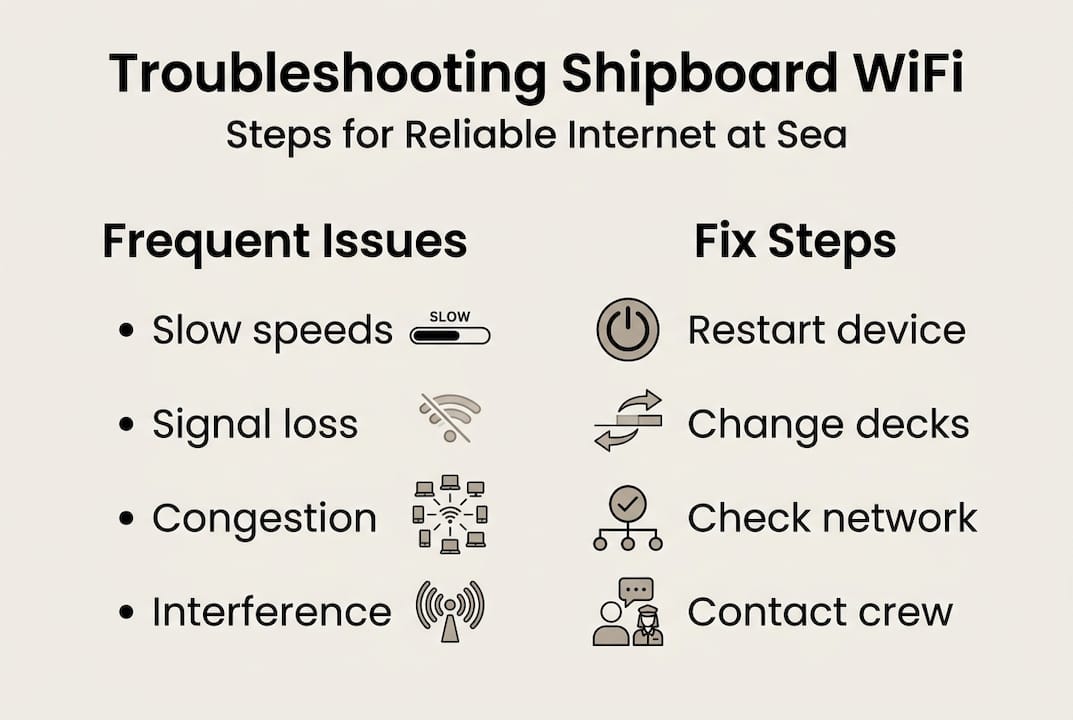
For each root cause, there’s a practical response. Congestion? Try off-peak hours. Interference? Wait it out or move decks. Rogue network? Disconnect immediately and confirm the real SSID with crew.
Pro Tip: If your connection suddenly drops, move two decks up and restart your device before doing anything else. This single action resolves a surprising number of signal issues.
See best practices for ferry internet for a practical breakdown of habits that keep connections stable throughout your journey. For deeper context on speed-related causes, connection speed impacts is worth reviewing.
Verifying success: how to test and benchmark your connection
To ensure your workflow delivered results, here’s how to check your connection quality.
After troubleshooting, don’t just assume things are fixed. Verify with these steps:
- Open speedtest.net or a similar tool and run a download and upload test
- Compare your results against expected benchmarks for your plan type
- Test latency (ping) to see if the connection feels responsive
- Try loading a page you couldn’t access before
- If results are still poor, repeat the location change and device restart from the workflow
“Starlink has transformed speeds but weather and interference still matter more than bandwidth alone.”
As speed benchmarks at sea show, basic plans typically deliver 2-20 Mbps with latency around 500-700ms, while premium and Starlink-powered plans reach 50-135 Mbps with just 20-50ms latency. That’s still much slower than land-based networks, so adjust your expectations accordingly.
| Plan type | Typical speed | Latency |
|---|---|---|
| Basic | 2-20 Mbps | 500-700ms |
| Premium / Starlink | 50-135 Mbps | 20-50ms |
For more on why speed matters for your experience, read about the importance of fast onboard internet. If you need a secure connection, a secure maritime connection guide walks you through the steps.
Our perspective: what most troubleshooting guides miss about internet at sea
Most guides hand you a list of steps and call it done. What they rarely say is this: the sea is unpredictable, and no single fix works every time.
Real success with shipboard internet comes from building a habit around diagnostics, not chasing one-time solutions. The passengers and crew who stay connected reliably are the ones who work through the same structured workflow each time, without skipping steps when they’re in a hurry.
Hybrid satellite and cellular systems, including Starlink integrations, have genuinely improved things. But weather, jamming, and traffic spikes still create disruptions that no hardware alone can prevent. Your best tool is patience combined with a routine. For those working remotely at sea, internet for remote work shows how to set realistic expectations and stay productive even during slowdowns.
Pro Tip: Expect occasional slowdowns. Systematic troubleshooting, done consistently, restores reliable access the vast majority of the time.
Get reliable shipboard WiFi with Seafy’s expert solutions
If you want to make shipboard internet worries a thing of the past, explore solutions designed specifically for life at sea.

Seafy provides robust WiFi systems, easy-to-use onboard portals, and a full library of guides and checklists built for both passengers and crew. From hybrid Starlink-powered packages to step-by-step connection support, Seafy covers every aspect of maritime connectivity. Whether you’re on a ferry crossing the Mediterranean or managing a ship’s network, Seafy gives you the tools and confidence to stay connected. Buon surf! 🌐
Frequently asked questions
What is the most common internet issue at sea and how can I fix it?
Network congestion peaks during busy evening hours, so connecting early in the morning, moving to higher decks, or restarting your device are the fastest fixes.
Why does the ship’s WiFi ask me to log in again after I change decks?
Moving between decks switches your device to a different access point, which ends your active session. Signal variability by deck can require re-authentication, so keep your login credentials handy.
Can I use a VPN with shipboard internet?
Yes, but VPN use requires a premium plan in most cases, since basic packages block VPN traffic to manage shared bandwidth.
What causes sudden loss of WiFi signal during a cruise?
Weather, satellite disruptions, and GNSS interference dropouts are the most frequent culprits, and jamming incidents have increased 50% in 2026.
How do crew troubleshoot connectivity issues differently from passengers?
Crew follow a system-level checklist that includes equipment monitoring, antenna restarts, and GNSS interference checks, while passengers focus on device-based steps.